



This library utilizes Breinify's API to provide tasks like geocoding, reverse geocoding, weather and events look up, holidays determination through the API's endpoints, i.e., /activity and /temporaldata. Each endpoint provides different features, which are explained in the following paragraphs. In addition, this documentation gives detailed examples for each of the features available for the different endpoints.
Activity Endpoint: The endpoint is used to understand the usage-patterns and the behavior of a user using, e.g., an application, a mobile app, or a web-browser. The endpoint offers analytics and insights through Breinify's dashboard.
TemporalData Endpoint: The endpoint offers features to resolve temporal information like a timestamp, a location (latitude and longitude or free-text), or an IP-address, to temporal information (e.g., timezone, epoch, formatted dates, day-name), holidays at the specified time and location, city, zip-code, neighborhood, country, or county of the location, events at the specified time and location (e.g., description, size, type), weather at the specified time and location (e.g., description, temperature).
The test task runs test-setup → clean:combine → combine:false → test-run. Specs load
the freshly combined core bundle from target/combined and plugins directly from src/plugins
in headless Chromium. Tests do not read or write dist. Use Node.js 20 or newer.
The dist task runs test first. Only after tests pass does it clean dist, minify the tested core
bundle, and copy/minify the plugins for distribution.
The project directory is the checkout containing this README, package.json, and gruntfile.js.
The test task prints the full path to its gruntfile.js whenever setup is missing.
No npx or globally installed Grunt is required.
- Open this project's
gruntfile.jsin IntelliJ's Grunt tool window. Refresh its task list iftestortest-runis not yet visible. - For a fresh checkout, install the dependencies in
package.jsonusing IntelliJ's configured Node interpreter and package manager. - Run
test. It ensures the matching Chromium browser is installed, resolves browser library dependencies throughcombine:false, prepares the core test bundle, and runs the specs. The first browser download needs internet access and can take several minutes; later runs reuse it.
You can still run test-setup separately to prepare the browser. For a quick repeat against an
already prepared core bundle, use test-run. It skips rebuilding and setup, so core source edits
require another test run before they are covered; plugin source edits are loaded directly.
Use the same Node interpreter and environment throughout.
To run fewer tests, add --spec=UiModifyContent or --spec=specs/Breinify-spec.js to the Grunt run
configuration's arguments. This is a case-sensitive substring filter on spec file paths.
A missing-browser error prints a complete command with the actual Node executable, local Grunt
CLI, and absolute gruntfile path. Paste that command into a terminal: it works from any directory
and requires neither node nor npx on PATH. After setup succeeds, the output prints the equivalent
command to run the tests.
If Node is already on PATH, the shorter equivalents below work from the project directory:
node node_modules/grunt/bin/grunt test
node node_modules/grunt/bin/grunt test --spec=UiModifyContent
npm test is also available when npm is on PATH. These commands assume the dependencies in
package.json have been installed as described above.
- Test browser is not installed / Executable doesn't exist: run
test-setupin IntelliJ, wait forBrowser ready, then reruntest. Alternatively, paste the complete terminal command printed in the error. No specs have run when this error appears. - Missing test input files: run
testinstead oftest-runto rebuild and prepare everything. - A build or dependency step fails: fix the reported
combine/deperror, then reruntest; the specs have not started. - A spec fails: the output lists the failing spec and assertion. Detailed results, including
stack traces, are in
target/test-results.json. Fix the failure and rerun that file using--spec. - A file times out: the default limit is 60 seconds. Add
--test-timeout=120000to the Grunt arguments to allow 120 seconds per file for a deliberately longer suite.
Do not use --force to bypass failures; it does not fix setup or failing tests.
On Linux CI, install the browser's system dependencies by running the local Playwright CLI with
install --with-deps --only-shell chromium before running the tests.
Each spec file gets a fresh browser context with isolated storage, cookies, and SDK instances.
Plugin specs receive the SDK's jQuery as a local $ variable; it is not exposed on the page globally.
Non-fixture browser requests are blocked, so tests must mock calls to live services.
The task exits nonzero for failed specs, browser errors, timeouts, or an empty file selection.
Pending specs are counted separately. The test task regenerates the unminified core bundle under
target/combined through the existing build tasks; test-run reads it and the plugin source files
without changing them. Distribution minification and copying happen only after dist passes its test step.
Build activity.tags.splitTest from the assignment used to render the experience:
const assignment = response.splitTestData;
Breinify.UTL.user.applySplitTestTags(tags, assignment);

// Explicit values use the same assignment shape:
Breinify.UTL.user.applySplitTestTags(tags, {
    testName: 'My test',
    selectedInstance: assignedInstance,
    groupDecision: 'Original',
    isControlGroup: true
});
The helper updates splitTest, group and groupType, preserves other tags and returns the same
object. It never reads or updates stored assignments. Pass the captured assignment so delayed
clicks retain the instance that produced the experience. isControlGroup takes precedence over
legacy isControl; group names are not used to guess control status. Missing or invalid
assignments leave tags untouched, so callers do not need a plain-object guard. Inactive assignments
use group: null and groupType: 'none'. An optional third argument supplies plugin defaults:
defaultGroup, defaultControlGroup, defaultTestGroup, defaultGroupType, controlGroupType
and testGroupType. Providing a defaults object (including {}) also applies defaults when the
assignment is missing or invalid.
Use createSplitTestActivityTag(assignment) only when the formatted label alone is needed.
It returns testName (selectedInstance), or null without a test name. Missing instances retain
the bare name for compatibility, but the backend's instance attribution requires a complete
assignment; an incomplete label can exclude otherwise valid clicks from metrics.
Recommendations, content modifications and countdowns share this helper. Publish the updated core library before or together with plugins and customer scripts that call it.
For feature-based experiences, see Feature resolution and UI configuration for waiting on current-page observations while retaining persisted values.
First of all, you need a valid API-key, which you can get for free at https://www.breinify.com. In the examples, we assume you have the following api-key:
938D-3120-64DD-413F-BB55-6573-90CE-473A
The library can be added as script, using:
<script type="text/javascript" src="https://cdn.jsdelivr.net/npm/breinify-api@1.0.15/dist/breinify-api.min.js"></script>If you want to use the most current snapshot version (only recommended for development purposes), you can also use:
<script type="text/javascript" src="https://rawgit.com/Breinify/brein-api-library-javascript-browser/master/dist/breinify-api.min.js"></script>If you prefer to use bower the newest version can be installed using:
bower install breinify-api --saveThe endpoint is used to track the usage of, e.g., an application, an app, or a web-site. There are several libraries available to be used for different system (e.g., iOS, Android, Java, nodeJs, ruby, php, python).
The jsFiddle (ojkvwwd9) shows how to use the endpoint to track the usage of this specific fiddle. There are plenty more use-cases in which the tracking of activities can be useful to understand and enhance a service. There are also several more possibilities on how to add identification, descriptions, categories, or tags. Have a look at the additional documentation.
The endpoint is capable to retrieve some information about the client, based on client specific information (e.g., the IP-address). The first example uses this information to retrieve some information, like the weather, events, or the timezone.
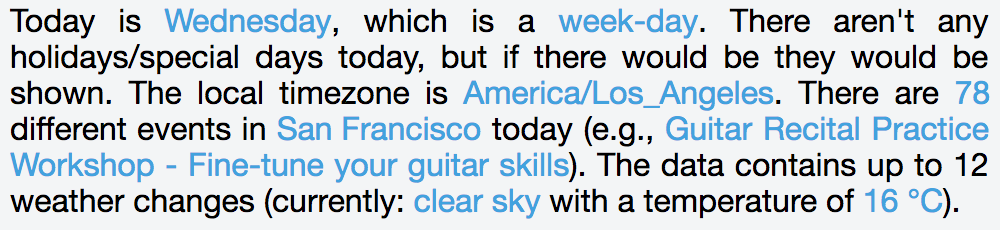
This is a screenshot of the jsFiddle (3wz4u5d1) created on the 29/03/2017 at 8:54 p.m.
The whole information is retrieved using the following simple JavaScript (see also jsFiddle (3wz4u5d1)):
Breinify.setConfig({ 'apiKey': '938D-3120-64DD-413F-BB55-6573-90CE-473A' });
Breinify.temporalData(function(data) {
	document.getElementById('result').innerHTML = createText(data);
});The library enables you to use the geocoding feature of the temporalData endpoint by passing a free-text and resolving it
to an associated location.
var loc = {
  text: 'NYC'
};

Breinify.temporalData({ additional: { location: loc }}, false, function(data) {
    // use the returned data
});
The endpoint will return the specific information to the defined location (i.e., the city, the state, and coordinates as latitude/longitude pair). A more advanced example can be found at the jsFiddle (egyhn5fz).
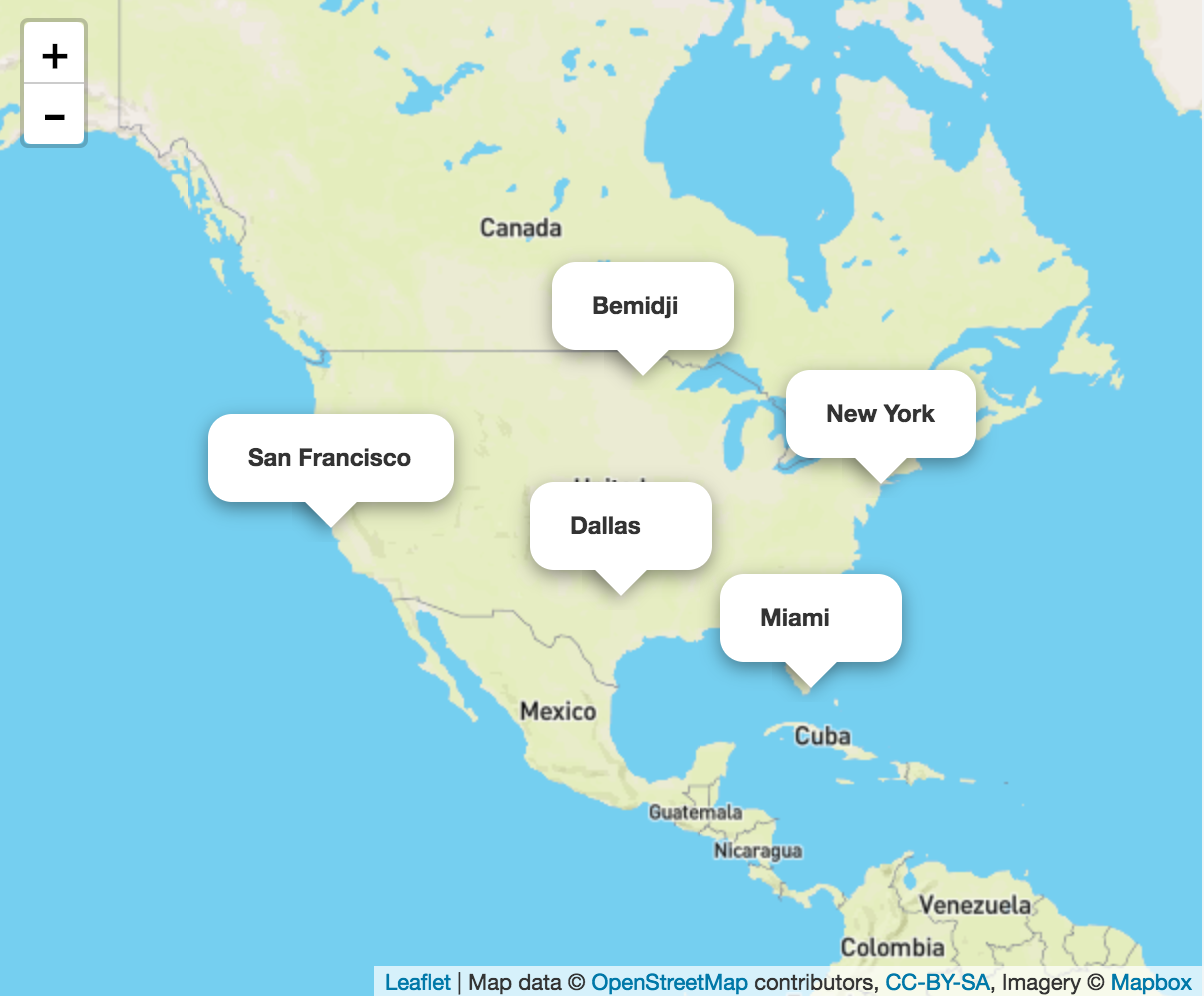
Screenshot of the sFiddle (egyhn5fz) resolving the texts: `NYC`, `San Francisco`, `Dallas`, `Miami`, `Bemidji`
The temporalData endpoint enables you to perform reverse geocoding. To do so, simple pass in the known latitude and longitude
into the request.
var loc = {
  latitude: 37.7609295,
  longitude: -122.4194155
};

Breinify.temporalData({ additional: { location: loc }}, false, function(data) {
    // use the returned data
});
If you like to get further information or even visualize the country, county, city, or neighborhood the location is in, it is possible to ask for appropriate geoJson instances and utilize them directly in, e.g., leafLet.
var loc = {
  latitude: latLon[0],
  longitude: latLon[1],
  shapeTypes: ['CITY', 'NEIGHBORHOOD']
};

Breinify.temporalData({ additional: { location: loc }}, false, function(data) {
    // use the returned data
});
Have a look at jsFiddle (qq4ryw6y) for a complete example.
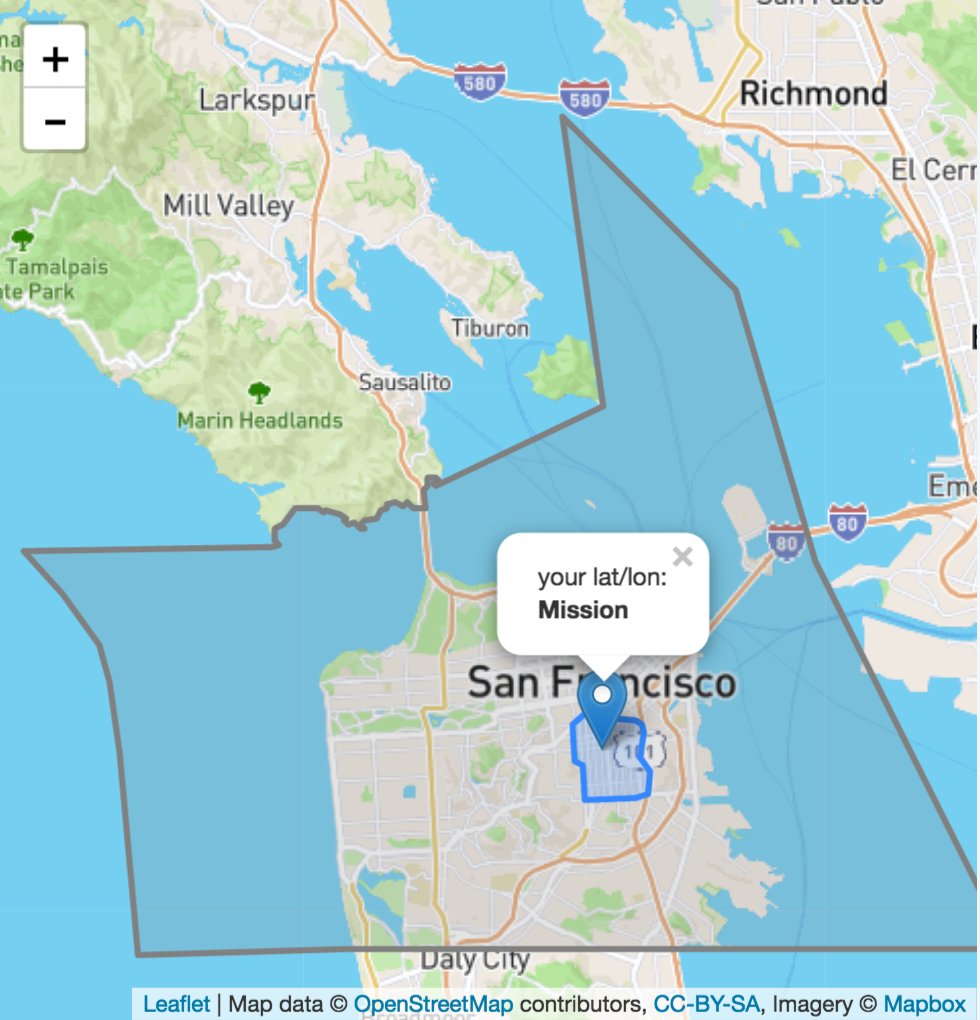
This is a screenshot of the jsFiddle (qq4ryw6y), utilizing leafLet to visualize the resolved geoJsons
The open /temporalData endpoint is limited to US specific locations only. Furthermore, weather specific data is only available for the years 2016 and later.
To understand all the capabilities of Breinify's API, you can find further information: