Repository navigation
Player Guide

Note
Download latest Gothic Unity version at:

Before you can start playing, you will need to set up your installation of Gothic Unity. This page assumes that you have already installed Gothic Unity on your target device (e.g. a Quest 2) using Unity, the Andoid APK or the Windows installer.
Supported Platforms
| Platform | Architecture | Comment |
|---|---|---|
| PC | Windows x64 | |
| Pico 4 | Android x64 | |
| Quest 2 | Android x64 |
To comply with the GothicMOD License, the project does not contain any of the original Gothic game assets. Because of that, you will have to provide the Gothic game data yourself. This process differs between different devices so make sure to choose the right instructions from the sections below. It is assumed that you have a working installation of Gothic on your PC; GOG, Steam or CD installations should all work interchangeably.

When playing on PC, all you will need to do is point Gothic Unity to your Gothic 1 installation directory. This can be done by setting the path in the GameSettings. This needs to be done before starting the game.
Note
The default installation path for the Steam version of Gothic is automatically used, if you don't provide something different. It's location is C:\Program Files (x86)\Steam\steamapps\common\Gothic.
Note
If you want to alter the location of Gothic installation, please make sure you escape your path with double backslashes. e.g. C:\\MyGames\\Gothic
Information on where the GameSettings.json is located and more about the other settings can be found in the GameSettings section.


To get the Gothic assets onto your headset you have to copy them to the Gothic Unity data directory on your headset: /sdcard/Android/data/com.GothicUnity/files/Gothic1/. Make sure that the Gothic1's game files are in their own subfolder (files/Gothic1).
Note
Start the game once to let it create the folder structures automatically for you. After stopping it, copy your Gothic1 files into these newly created folders.
After copying your Gothic game files, the folders should look something like this:
/sdcard/Android/data/com.GothicUnity
|-- files
|---- GameSettings.json (Automatically created during first game start. It's values can be altered.)
|---- Gothic-Unity.log.txt (Re-created during every game start. Useful for troubleshootings.)
|---- Gothic1 (Your stored game files to run Gothic Unity)
|------ Data
|------ Saves
|------ system
|------ _work
|------ [...]
|---- Gothic2 (Will be supported later...)
|------ [...]
To copy your game files onto your device you can use SideQuest. To access your headset's files, you have to enable the Developer Mode in your headset's settings.
Note
The following assumes you have SideQuest (which comes with adb) installed, the Developer Mode enabled and your headset connected to your PC - if not, see below
To install SideQuest search in your preferred search engine for How to install SideQuest on <windows/linux>.
For enabling the Developer Mode, just search for How to enable developer mode on <quest 2/pico 4>.
To connect your headset, use a USB Type-C cable.
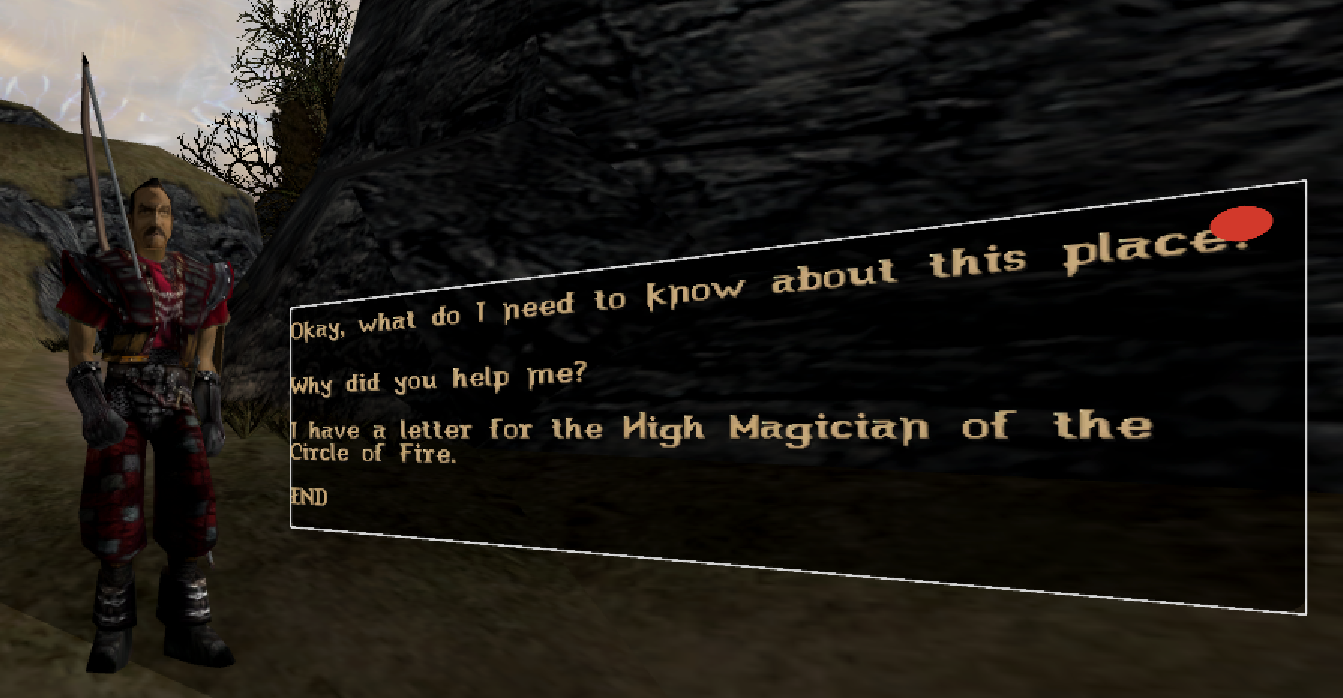
Gothic Unity supports an optional SpeechToText mode. It can be activated by pressing both HandGrips while the dialog choice menu is opened. You will see a red record icon on the right top corner of the dialog menu indicating the recording. Once the buttons are released, a small magnifier indicates the GenAI/LLM is transforming your voice into text to auto-select the menu option.
HINT: If you do not! want GenAI features, ignore the steps below. If you don't place the local LLM on your system, it is deactivated and can't be used.
HINT: If activated, The used AI model runs locally only! Data stays on your device alone.
How to activate:
- Go to release page for v0.2.0-alpha: https://github.com/Gothic-Unity-Project/Gothic-Unity/releases/tag/v0.2.0-alpha
- Download SpeechToText.zip with the following files:
- vocab.json
- decoder_model.sentis
- decoder_with_past_model.sentis
- encoder_model.sentis
- logmel_spectogram.sentis
- Place it inside StreamingAssets/SpeechToText folder (PCVR) or files/SpeechToText/* (Android)
Once the game is started, you need to define your Microphone for recordings (Menu -> Settings -> VR Immersion -> Microphone) and allow usage of Microphone itself when prompted (Android).
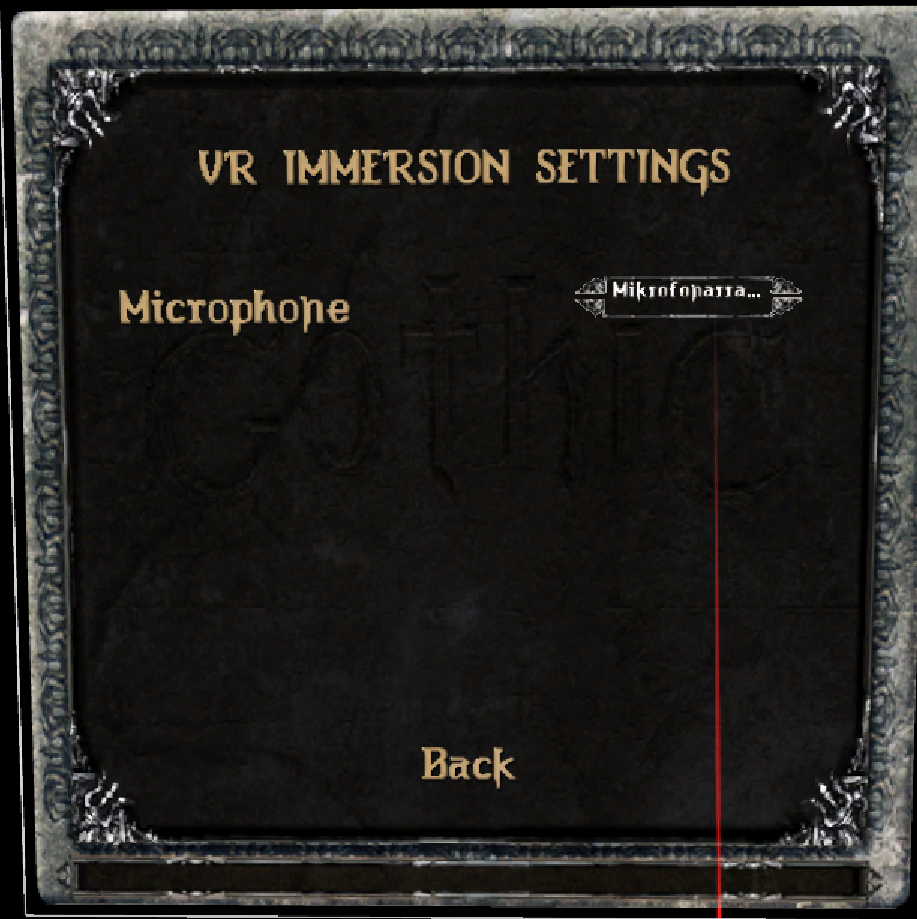
Checking if everything's set up correct: a.) Check if the recording button is visible when you press the controller buttons. b.) Change LogLevel to "Message" and look out for a message like "Whisper initialized".
WARNING:
There are two known pitfalls:
- SpeechToText is transformed on GPU. (e.g.) Quest2 is known to cause stutter when recording voice and transforming your input. It's best experienced with PCVR due to the dedicated GPU.
- Unity's Microphone API can cause some delays when recording starts or ends. This is unrelated to GPU/CPU limitations and may vary based on device and Microphone driver.
Links:

- Models: https://huggingface.co/unity/inference-engine-whisper-tiny
- License: https://choosealicense.com/licenses/apache-2.0/
The GameSettings.json file can be used to modify some of Gothic Unity's settings.
| Setting | Location | Required | Default | Description |
|---|---|---|---|---|
| GothicIPath | GameSettings.json | No | - PCVR: C:\Program Files (x86)\Steam\steamapps\common\Gothic - Android (Pico4/Quest2): /sdcard/Android/data/com.GothicUnity/files/Gothic1 |
(PCVR only) Gothic Unity requires a full Gothic1 installation/file-dump at runtime. Name its location here (Windows users: Escape the backslash with \\). This setting gets ignored on Android (e.g. Pico 4/Quest 2). |
| LogLevel | GameSettings.json | No | Warning | Defines the level of logging that will be saved. Values are: Message/Warning/Error. |
| ModFolders | GameSettings.json | No | [] |
Mods installed in their own copy of a game (e.g. Mroczne Tajemnice next to Gothic) instead of into the game folder. List of { "GameVersion": "Gothic1" | "Gothic2", "Path": "..." }. Each folder's system/ game inis show up in the game profile list next to the game's own. A folder without a game ini is skipped with a warning. |
| AchievementsEnabled | GameSettings.json | No | true |
Achievements on or off. Off: nothing is recorded and no pop-ups appear. |
Unlocked achievements are stored per game in the Achievements folder of the persistent data folder (e.g. Achievements/Gothic1.json). Every achievement is earned in a tier - Innos (no cheats, never went back to an older save), Adanos (normal play with saving and loading) or Beliar (cheats used). See Achievements for the tiers and the list.
Example with one mod folder (Windows users: escape the backslashes):
{
  "ModFolders": [
    { "GameVersion": "Gothic1", "Path": "C:\\Games\\Gothic-MT" }
  ]
}
Where to find the GameSettings.json:
-
PCVR: Location is inside download/installation directory:
.\GVR_Data\StreamingAssets\GameSettings.json -
Mobile VR (Quest2/Pico4): After starting the game for the first time (and/or the file doesn't exist), it will create the
GameSettings.jsonfile at/sdcard/Android/data/com.Gothic.Unity/files/GameSettings.json
The following settings are supported by Gothic Unity and will be recognized when changed.
Gothic.ini
[PERFORMANCE]
sightValue=14

[GAME]
subTitles=1
playLogoVideos=1

[SOUND]
musicVolume=1
musicEnabled=1

[INTERNAL]
playerInstanceName=PC_HERO

[SKY_OUTDOOR]
zDayColor0=116 89 75
zDayColor1=80 90 80
zDayColor2=120 140 180
zDayColor3=120 140 180
There are also settings added and supported by Gothic Unity alone
[GOTHIC_VR_ACCESSIBILITY]
sitStand=3
; ... VR height adjustments: 0=sitting, 1=standing 3=player height without adjustments
heightOffset=0.5
; ... Fine height adjustment between 0=-1m and 1=+1m. 0.5=no offset (5cm steps in the menu)
moveDirection=0
; ... VR Movement direction based on Camera (0), LeftController (1), or RightController (2)
rotationType=1
; ... VR rotation options: 0=Smooth, 1=Snap
snapRotationAmount=0
; ... Values are between 0=5° and 8=45°
smoothRotationSpeed=0.5
; ... VR Smooth Rotation speed between 0=5 and 1=95 (Don't ask me what the number is. It's an internal one from our VR Controls Package ;-)
smoothSpectator=0
; ...  Spectator rotation smoothing for PCVR recordings: 0=off, 3=high smoothing
ledgeClimbMode=0
; ... Ledge climbing: 0=pull yourself up, 1=fade onto the ledge
heroFallMode=0
; ... Knocked out, dead or put to sleep: 0=the view goes down with the hero's body, 1=fade out and back at ground level
favoritesRingZoom=0.333333
; ... Favorites ring size (menu "Favorites ring size") between 0=0.5x (close) and 1=2x (far) of the normal distance, 0.333333=normal. Set with the right stick up/down while the ring is open (simulator: mouse wheel) or in the menu

[GOTHIC_VR_IMMERSION]
microphone=0
; ... Selected microphone for SpeechToText feature in VR. 0=off, 1...n=activated Microphone on your device.
physicalHands=1
; ... 1=hands stop at walls and push objects, 0=hands follow the controllers directly
heroHands=1
; ... 1=the hero's own fists are your hands (needs the VR hero body), 0=VR hand models
heroBlock=1
; ... 1=both hands on a melee weapon and both triggers held parry like Gothic, 0=no blocking
stabFinish=1
; ... Finishing off a knocked out human: 1=stab and hold the blade in for 2 s, 0=any weapon hit
crossbowReload=1
; ... Crossbow after a shot: 1=pull the string back with the other hand until it locks, 0=reloads by itself after 1.5 s
scrollsSingleUse=1
; ... Single-use scrolls (menu "Single-use scrolls"): 1=a cast uses the scroll up like in Gothic, 0=scrolls are cast forever
throwableSpells=1
; ... Thrown spells (menu "Thrown spells"): 1=hold the rune, charge with the trigger, swing and let go to throw projectile spells (firebolt, ...), 0=they are cast like other spells
favoritesRing=1
; ... Favorites ring (menu "Favorites ring"): 1=both hands up (empty) + both triggers held for 1 s open the favorites ring with your equipped spells, weapons, favorite items and money, 0=off
pickpocketPurse=1
; ... Pickpocket purse (menu "Pickpocket purse", Gothic 2 only): 1=while you sneak, a purse hangs on NPCs you could pickpocket in their dialog; grab it to pickpocket them (gold, once per NPC - or they catch you). No purse = already robbed or not skilled enough. 0=pickpocketing only in the dialog. Gothic 1's purse is always on
ledgeHints=1
; ... 0=off, 1=glow on climbable ledges
moveVignette=0
; ... Darkened view edges while moving/turning: 0=off, 1=light, 2=strong
itemDetailsPopup=1
; ... 1=backpack in one hand and an item in the other shows the item's inventory text, 0=off
backpackVacuum=1
; ... 1=the opening of the held backpack pulls in nearby world items and stores them, 0=off
lootTakeAll=1
; ... 1=loot backpacks of dead NPCs and lidless containers show a green "X" that takes everything, 0=off
textSize=0
; ... Size of subtitles and dialog choices: 0=normal, 1=large, 2=larger
colorVision=0
; ... Colorblind mode: 0=normal, 1=red-weak, 2=green-weak, 3=blue-weak
hitNumbers=0
; ... 1="-X HP" / "+X MANA" numbers float over NPC heads and next to the hero's bars when health/mana changes (menu "Hit numbers"), 0=off
hitNumbersSize=0
; ... Size of the hit numbers (menu "Hit numbers size"): slider between 0=normal size and 1=3x bigger
healthNumbers=0
; ... 1="HP/MAX" on health bars (and "MANA/MAX" on the hero's mana bar) (menu "HP numbers"), 0=off
dialogFreeMovement=0
; ... Walk in dialogs (menu "Walk in dialogs"): 1=move around while talking within 5 m of the NPC (slows down from 3 m), walking away while you can choose an END answer ends the dialog, 0=you stay at your spot like in Gothic

[SOUND]
footstepSounds=1
; ... 1=footsteps sound by the ground below (earth, stone, wood, water), 0=off. VR and Flat

[GOTHIC_VR_CONTROLS]
controllerHand=0
; ... 0=right-handed, 1=left-handed (controller tasks swapped)
jumpButton=0
; ... 0=lower button, 1=upper button, 2=stick click. Crouching takes the other button
menuButton=0
; ... 0=upper button, 1=lower button, 2=menu button
GothicGame.ini (Aka the Mod.ini. Can be named like the actual mod. Supported key=value pairs below.)
[FILES]
vdf=...
; Lists the exact .mod/.vdf archives this ini wants mounted.

[SETTINGS]
player=PC_HERO
; Daedalus symbol which covers the actual player object.
world=...
; Startup world for the selected mod.

[GOTHIC_UNITY]
unitySkipMusicPlayback=0
; ... Safety hatch, not a user setting (the in-game music toggle only mutes, see Gothic.ini musicEnabled).
; ... Set unitySkipMusicPlayback=1 for mods whose music crashes dmusic natively, e.g. Gothic II New Balance
unityFallbackLanguage=
;... Keep empty if not needed. But some mods need special treatment on how to find the right installed version.
;... Then it will be one of: cs, pl, ru, de, en, es, fr, it.Where to find the log files?
-
PCVR: Location directory for the logging file:
%USERPROFILE%\AppData\LocalLow\GothicUnityProject\GothicUnity\Gothic-Unity.log.txt -
Mobile VR (Quest2/Pico4): Location directory for the logging file:
/sdcard/Android/data/com.GothicUnity/files/Gothic-Unity.log.txt
Current controls can be viewed inside Gothic menu (main menu and ingame Menu). Look out for the Gothic Unity logo and click on it. It will show you the control scheme for your device.
Cheats (Marvin mode) and their support in Gothic Unity are listed on Cheats and Marvin Mode.